Sending your first request
Introduction
This guide uses the v2 API and protocol 5.1-WL2.1.1 from the latest API reference.
This page guides you through sending your first simple request to the Worldline Terminal API. We'll demonstrate a synchronous payment request - the most common operation you'll perform. While this guide uses synchronous requests for their simplicity and ease of understanding, please note that asynchronous requests are the preferred approach for production environments due to their better performance and reliability characteristics.
For this example, we'll use the integration environment, allowing you to test your implementation before moving to production. The API base URL for the integration environment is:
https://api.terminal.iacc.global.worldline-solutions.com
Prerequisites
To get your terminal ready for API integration:
- Physical Setup: Ensure your terminal is powered on and connected to the internet via Ethernet or Wi-Fi.
- Terminal Registration: Your terminal must be registered with Worldline and assigned a unique terminal ID.
- Configuration: The terminal should be configured with the correct integration environment settings.
- Network Access: Verify that your terminal can reach the API endpoints and has proper firewall permissions.
For detailed terminal setup instructions, including configuration steps and troubleshooting, see our Terminal Setup Guide.
Required information
Before making your first API request, ensure you have:
- Terminal ID: The unique identifier assigned to your registered terminal.
- API Credentials: Your integration environment API key and authentication details.
- Sales system details: Your Worldline-provided
IntegratorId, sale-software type, and software version forHeader.SalesSystemInfo. - Network Configuration: Confirmed connectivity between your terminal and the API endpoints.
Once your terminal is properly set up and you have gathered the required information, you can proceed with the API integration steps outlined below.
The payment request endpoint
To process a payment, you'll send a POST request to:
/api/v2/merchants/{MERCHANT_ID}/terminals/{TERMINAL_ID}/payments/syncPath parameters:
{MERCHANT_ID}– Your merchant identifier.{TERMINAL_ID}– The terminal identifier processing the transaction.
Request headers
Your request must include these HTTP headers:
| Header | Value |
|---|---|
| Content-Type | application/json |
| Authorization | Bearer {YOUR_TOKEN} |
Request body structure
The request body contains a SaleToPOIServiceRequest object with two main components:
Core components
Header object – Contains message metadata:
- Identifies the message type and version.
- Provides unique identifiers for request tracking.
- Specifies the initiating party and identifies your sale software through
SalesSystemInfo.
ServiceRequest object – Contains transaction details:
- Identifies the terminal in
Environment.POI. - Defines the payment amount and currency.
- Includes transaction references.
- Specifies the transaction type.
Essential fields explained
| Field | Description | Example Value |
|---|---|---|
| MessageFunction | Type of request being made. | "SaleFinancialServiceRequest" |
| ProtocolVersion | API protocol version. | "5.1-WL2.1.1" |
| Currency | ISO 4217 currency code. | "EUR" |
| TotalAmount | Transaction amount. | 104.11 |
ExchangeIdentification | UUID for this request. | a1b2c3d4-e5f6-4a7b-8c9d-0e1f2a3b4c5d |
SalesSystemInfo | Integrator ID and at least one sale-software entry with its type and version. | See the request below. |
Complete example request
Replace the merchant ID, terminal ID (in both the URL and Environment.POI), API key, and integrator ID placeholders with your own values. Set SaleSoftware.Type and Status.VersionNumber to your software details. Generate a UUID for each new request, update both timestamps to the current time, and use a transaction reference meaningful to your sale.
curl --location 'https://api.terminal.iacc.global.worldline-solutions.com/api/v2/merchants/YOUR_MERCHANT_ID/terminals/YOUR_TERMINAL_ID/payments/sync' \
  --header 'Content-Type: application/json' \
  --header 'Authorization: Bearer YOUR_TOKEN' \
  --data '{
  "SaleToPOIServiceRequest": {
    "Header": {
      "MessageFunction": "SaleFinancialServiceRequest",
      "ProtocolVersion": "5.1-WL2.1.1",
      "ExchangeIdentification": "a1b2c3d4-e5f6-4a7b-8c9d-0e1f2a3b4c5d",
      "CreationDateTime": "2026-09-25T10:00:00+02:00",
      "InitiatingParty": {
        "Identification": "YOUR_MERCHANT_ID",
        "Type": "Merchant"
      },
      "SalesSystemInfo": {
        "IntegratorId": "YOUR_INTEGRATOR_ID",
        "SaleSoftware": [
          {
            "Type": "ECR",
            "Status": {
              "VersionNumber": "1.0.0"
            }
          }
        ]
      }
    },
    "ServiceRequest": {
      "ServiceContent": "FinancialPaymentRequest",
      "PaymentRequest": {
        "PaymentTransaction": {
          "TransactionType": "CardPayment",
          "TransactionIdentification": {
            "TransactionDateTime": "2026-09-25T10:00:00+02:00",
            "TransactionReference": "R26197055"
          },
          "TransactionDetails": {
            "Currency": "EUR",
            "TotalAmount": 104.11
          }
        }
      },
      "Environment": {
        "POI": {
          "Identification": {
            "Identification": "YOUR_TERMINAL_ID"
          }
        }
      }
    }
  }
}'
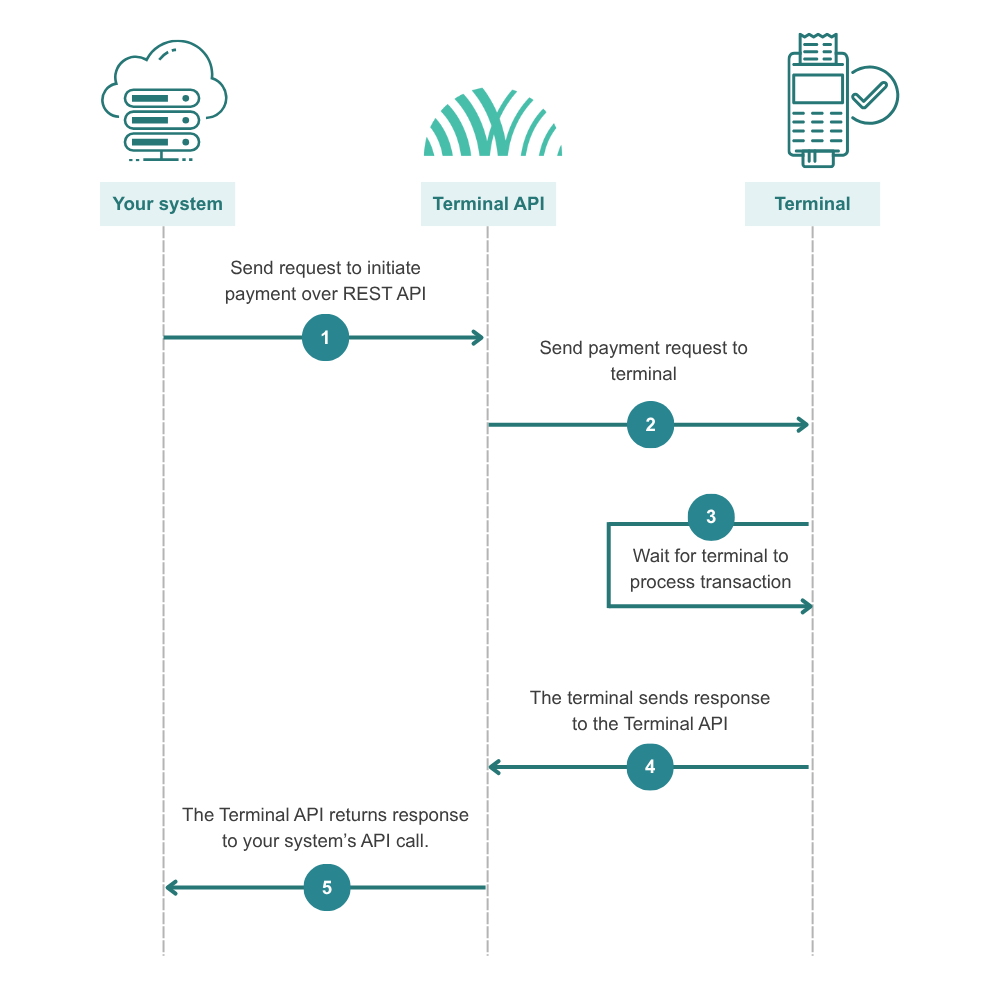
What happens next
Once your request is received, the Terminal API will:
- Send a request to the terminal over WebSocket to initiate the payment.
- Wait for the terminal response, up to the synchronous endpoint's four-minute timeout.
- Return the response to your API call.
You'll receive an HTTP response with one of these status codes:
- HTTP 200 OK – A terminal response was received. Read the Nexo payload from
body.data. - HTTP 202 Accepted – No terminal response arrived before the synchronous timeout. The acknowledgement contains no Nexo business payload; retain its
requestId. The terminal may still respond, so the payment outcome is unknown. - HTTP 400 – Invalid request format or parameters.
- HTTP 401 – Authentication failed.
- HTTP 404 – Not Found (In case of an unknown MERCHANT_ID or TERMINAL_ID, as well if the terminal is not connected).
- HTTP 409 Conflict – The exchange is already in progress or cannot be replayed. Look up its status before deciding how to recover.
- HTTP 500 – Server error.
For a payment response, read body.data.SaleToPOIServiceResponse and inspect the Nexo business result. A rejection may instead contain SaleToPOIMessageRejection. An HTTP 200 does not by itself mean that the payment was approved.
If the response is missing, retain the original ExchangeIdentification and use transaction-status lookup. Do not create a new payment identifier solely because a response is missing. Repeating a processed exchange can return its recorded result.
For HTTP errors, read body.message and retain body.requestId for diagnostics. V2 does not use the v1 body.code field. See the response examples in the latest API reference.
Quick checklist
Before sending your request, verify:
- Valid merchant and terminal IDs are inserted.
- Bearer token is valid.
ProtocolVersionis5.1-WL2.1.1andExchangeIdentificationis a UUID.SalesSystemInfocontains your integrator ID and software type/version.Environment.POIidentifies the same terminal as the request URL.- TotalAmount value is correct for your transaction.
- CreationDateTime and TransactionDateTime use ISO 8601 format.