SDK for Advanced App Deployment
SmartPOS program for app developers offers advanced control on app deployment in specific use cases by integrating a dedicated SDK.
SDK Overview
SmartPOS Store integrates the 3rd-Party App Android SDK, a toolkit that enables Worldline partners to develop Android applications on the SmartPOS platform. The SDK simplifies integration with SmartPOS Store through predefined APIs.
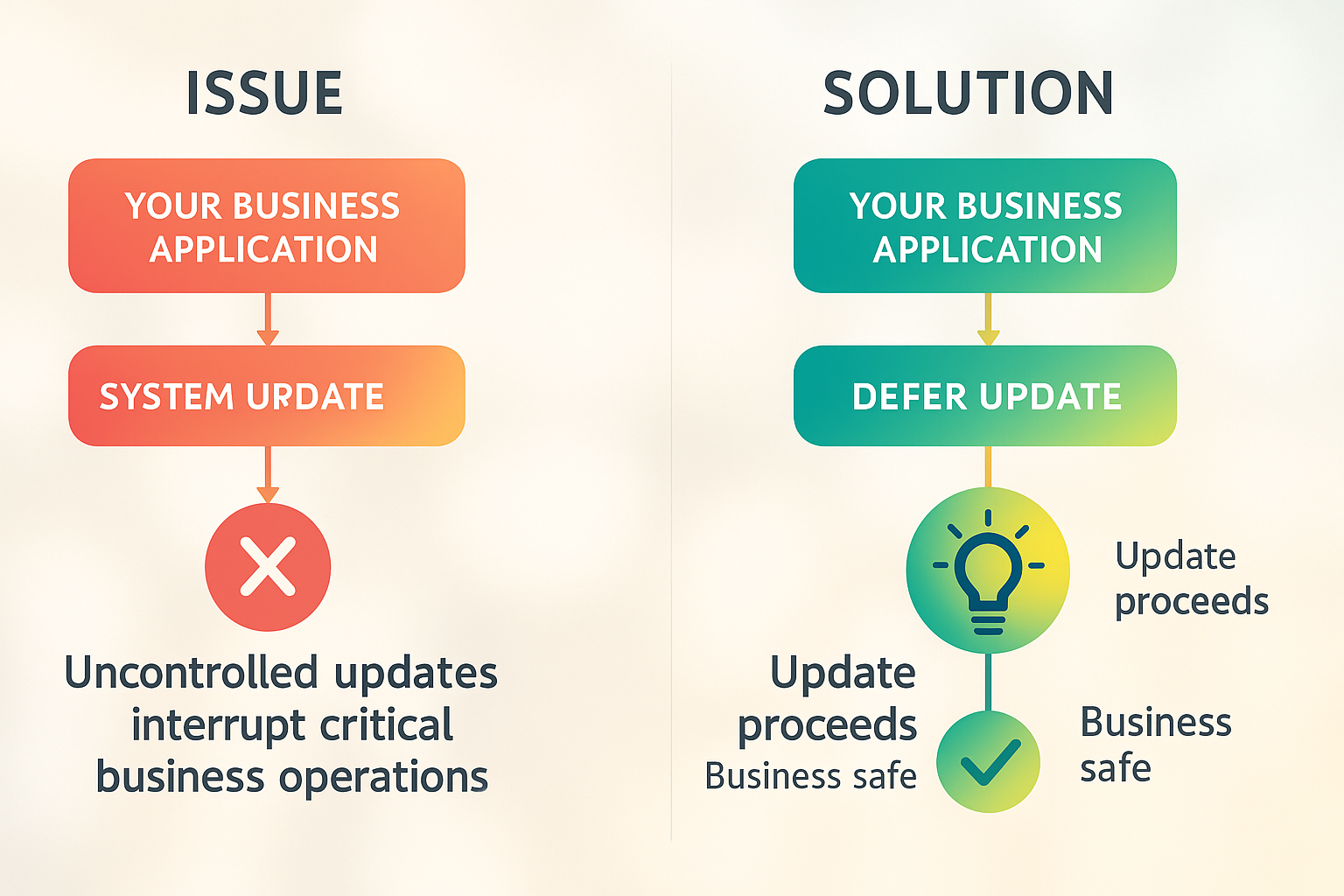
This SDK eliminates integration complexity by handling all communication with the SmartPOS Store securely, allowing you to focus on building the business logic of your application.
View technical details and updates on GitHub
When to Use the SDK
Use the SDK for use cases like:
- Your app needs to control when updates occur based on business state (e.g., delay updates during active transactions)
- Your app requires parameter updates from SmartPOS Store
- Your app needs to receive cloud messages and notifications from SmartPOS Store
- You want to integrate analytics and reporting with SmartPOS Store
The SDK is essential when you need your app to manage its lifecycle intelligently based on what the app is currently doing.
Supported Devices
The SDK works on all SmartPOS-supported devices.
Requirements: Android SDK 19 or higher
Getting Your SDK Credentials
Access the Developer Center with your partner credentials.
Create or directly navigate to your application's details page.
Get your AppKey and AppSecret from the app details page.
Follow the setup guide to integrate the SDK.
Quick Start
Add the SDK dependency to your build gradle:
implementation 'com.whatspos.sdk:paxstore-3rd-app-android-sdk:10.0.1'
Navigate to "Finding Your AppKey and Secret" page and follow the instructions.
Follow the "Update Inquirer Integration" codelab for implementation.
Finding Your AppKey and Secret
Your AppKey and AppSecret are required to initialize the SDK in your application. These credentials authenticate your app with SmartPOS Store.
**STEP 1: **Create your app in the SmartPOS Store Developer Center (optional if you already have an app)
- Log in to Developer Center ( https://smartpos.whatspos.com/developer/#/home )
- Navigate to Developer or App Management section
- Click "Create New App"
- Fill in your app details (name, description, etc.)
- Confirm to create the app
STEP 2: Locate your credentials to SDK
Once your app is created, go to the app details page and press the "APP Keys button".
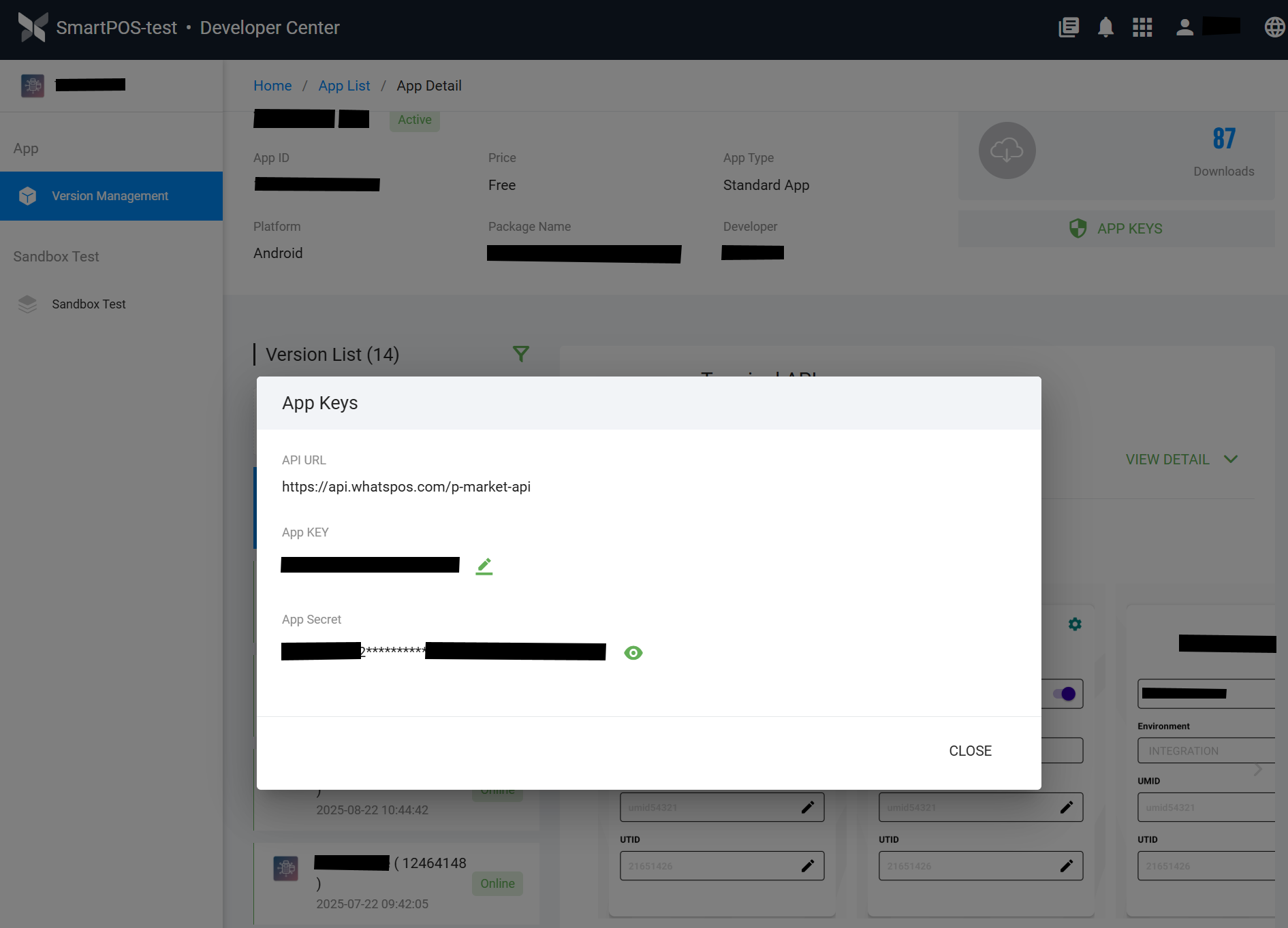
You will see:
- AppKey - Unique identifier for your application
- AppSecret - Secret credential for authentication
IMPORTANT: Keep your AppSecret secure and never share it publicly
STEP 3: Use keys in your project
Copy both values and add them to your code base (covered in the codelab balow).
Update Inquirer Integration Codelab
In this codelab, you will learn how to control when your app receives updates from SmartPOS. By default, SmartPOS updates apps automatically. With Update Inquirer, you can delay updates when your app is processing critical business operations.
What is Update Inquirer?
Update Inquirer lets you tell SmartPOS "not now, I'm busy" when an update is available. Your app can check its current business state and prevent interruptions during critical operations like payment processing or transactions.
When to use Update Inquirer?
Use Update Inquirer when:
- Your app processes payment transactions and must not be interrupted mid-process
- Your app is checking out or finalizing a sale
- Your app is in the middle of a critical business operation that cannot be safely interrupted
- You want updates to happen only when your app is idle
Before you start
- You have AppKey and AppSecret from SmartPOS Developer Center
- Android SDK 19 or higher and Gradle 4.1 or higher
- Add to build.gradle: implementation 'com.whatspos.sdk:paxstore-3rd-app-android-sdk:10.0.1'
- Add to AndroidManifest.xml:
STEP 1: Configure your application class
Edit AndroidManifest.xml to point to your application class:
    android:name=".BaseApplication"
    android:icon="@mipmap/ic_launcher"
    android:label="@string/app_name">
STEP 2: Initialize the SDK in your application class
Create or update your BaseApplication class:
public class BaseApplication extends Application {

    private static final String TAG = BaseApplication.class.getSimpleName();

    // Replace with your SmartPOS credentials from Partner Center. They could be stored
	// and retrieved from a secure place at build-time
    private String appKey = "Your APPKEY";
    private String appSecret = "Your APPSECRET";

    @Override
    public void onCreate() {
        super.onCreate();
        initStoreSdk();
    }

    private void initStoreSdk() {
        StoreSdk.getInstance().init(getApplicationContext(), appKey, appSecret,
            new BaseApiService.Callback() {
                @Override
                public void initSuccess() {
                    Log.i(TAG, "SDK initialized successfully");
                    initInquirer();  // Initialize Update Inquirer next
                }

                @Override
                public void initFailed(RemoteException e) {
                    Log.e(TAG, "SDK init failed: " + e.getMessage());
                }
            });
    }

    private void initInquirer() {
        StoreSdk.getInstance().initInquirer(new StoreSdk.Inquirer() {
            @Override
            public boolean isReadyUpdate() {
                // Check your business state here
                // Return false if app is busy, true if safe to update
                return !isTrading();
            }
        });
    }

    private boolean isTrading() {
        // TODO: Add your business logic here
        // Return true if app is currently processing a transaction
        // Return false if app is idle and safe to update
        return false;
    }
}
STEP 3: Implement your business logic
In the isReadyUpdate() method, return:
- false = App is busy, delay the update
- true = App is idle, safe to update
Example implementations:
You can implement isTrading() in different ways depending on your app architecture:
Option 1: Direct transaction manager check
private boolean isTrading() {
        return transactionManager.hasActiveTransaction();
    }
Option 2: Subscribe to transaction state flow
private boolean isTrading() {
        return transactionStateFlow.getValue() == TransactionState.PROCESSING;
    }
Option 3: Check current screen
private boolean isTrading() {
        return currentScreen == PAYMENT_SCREEN;
    }
Option 4: Subscribe to multiple business state flows
private boolean isTrading() {
        TransactionState txState = transactionFlow.getValue();
        PaymentState paymentState = paymentFlow.getValue();

        return (txState == TransactionState.PROCESSING ||
                paymentState == PaymentState.IN_PROGRESS ||
                checkoutFlow.getValue() == CheckoutState.FINALIZING);
    }
Choose the approach that best fits your business logic and app architecture. You can combine multiple state checks if needed.
HOW IT WORKS
SmartPOS Store detects new app version available
↓
Calls your app's isReadyUpdate()
↓
Returns false? → the SmartPOS Store reschedules for later
Returns true? → the SmartPOS Store proceeds with update
KEY POINTS
⚠ Important: initInquirer() must be called AFTER initSuccess() callback
⚠ If your app doesn't start before SmartPOS checks for updates, the inquirer won't take effect, and app will update anyway
✓ Keep your isReadyUpdate() logic simple and fast - it should not block
TESTING
Deploy your app with Update Inquirer implementation
Push a new version of your app in SmartPOS Partner Center
Return false from isReadyUpdate() and verify update is delayed
Return true and verify update proceeds immediately
Check Android logs to confirm isReadyUpdate() is being called
TROUBLESHOOTING
Problem: Update happens even though isReadyUpdate() returns false
Solution: Ensure initInquirer() is called in the initSuccess() callback after SDK initialization
Problem: isReadyUpdate() is never called
Solution: Verify SDK initialization was successful by checking logs for "SDK initialized"
Problem: Cannot initialize SDK / init failed error
Solution: Verify AppKey and AppSecret from SmartPOS Partner Center are correct and properly copied
NEXT STEPS
Explore other features available through the PAXSTORE SDK in the full GitHub documentation:
https://github.com/PAXSTORE/paxstore-3rd-app-android-sdk
Need help? Contact SmartPOS support